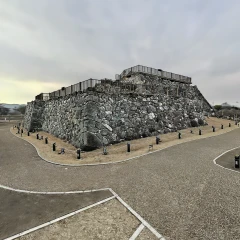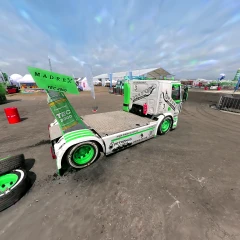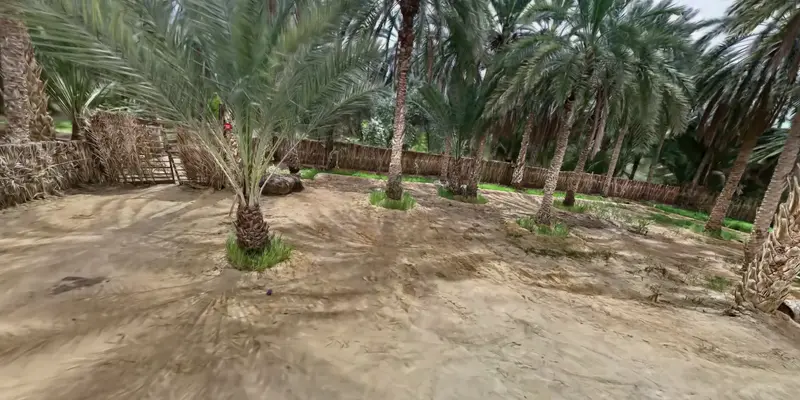
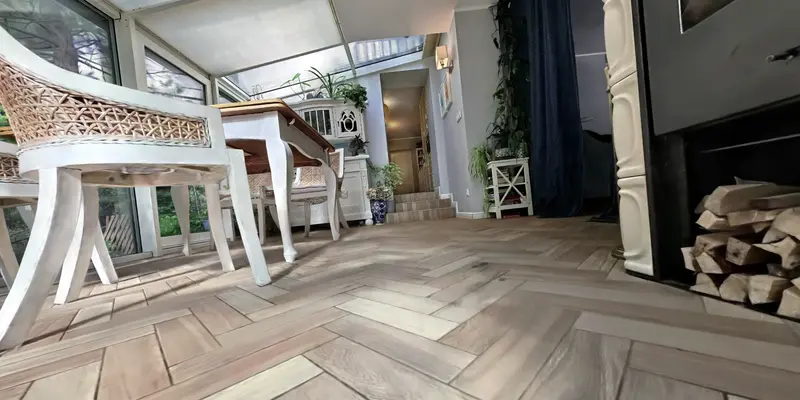
In progress
Being built now.
- Pavo20 Pro and Pro II physics tuned against the real quads: the blackbox log tools and the Betaflight dump import are ready, waiting for logs from the real quadsIn progress
Open-source FPV simulator · MIT
ShramkoGSFPV turns 1,300+ Gaussian Splatting scans from SuperSplat into places you can fly: real rooms, streets and gardens with walls you actually crash into, Betaflight-style rates and PID, and your own radio over USB or touch sticks. Nothing to install.
Works best in desktop Chrome or Edge with WebGPU.
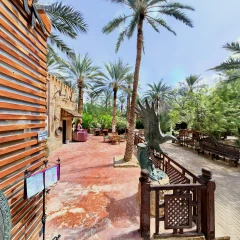
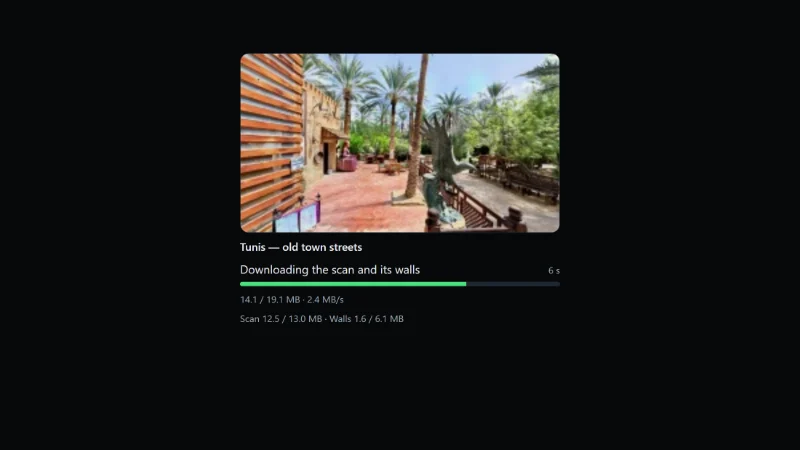
Video: a flight in Tunis — old town streets, scan by Andrii Shramko, CC BY 4.0, recorded in the simulator. Fly this scene: Tunis — old town streets
01New: places to fly
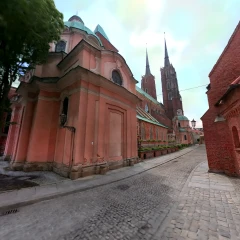
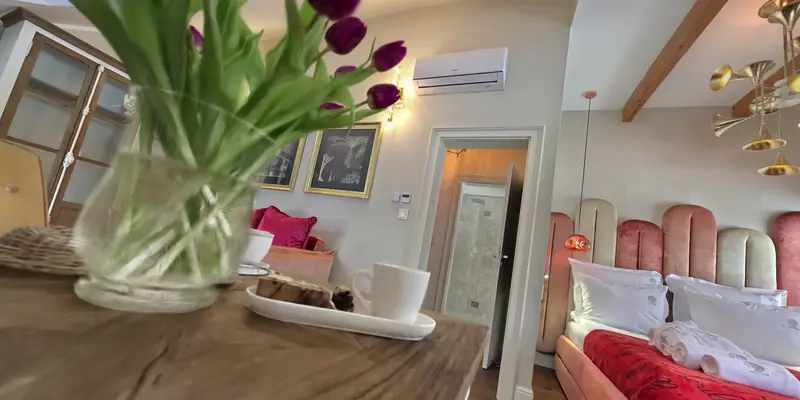
Real rooms, gardens, streets and churches, scanned by people around the world and published with walls you crash into. Let the simulator pick, change places on every crash, or bring your own scan.
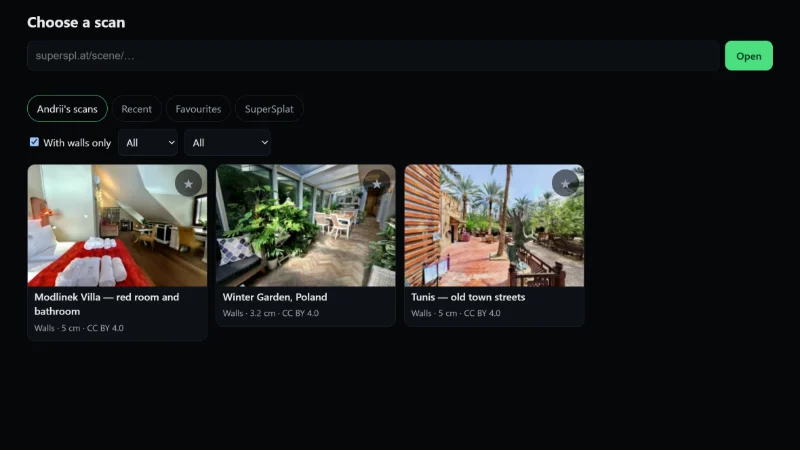
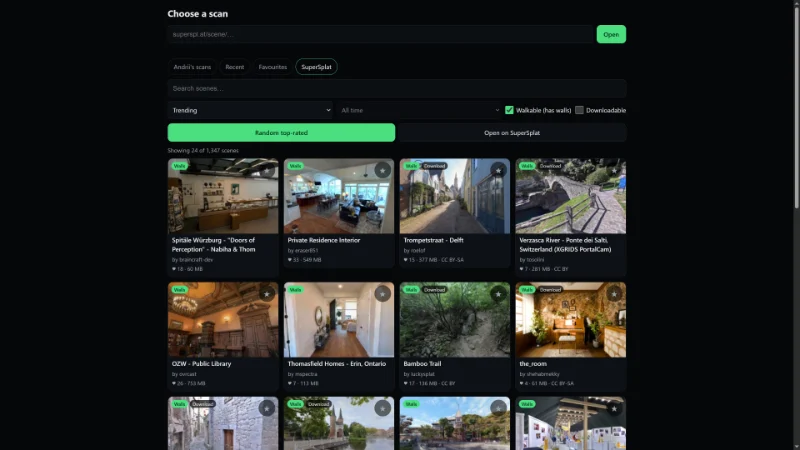
The SuperSplat tab in the simulator lists every public scan with walls, with superspl.at's own sorting, filters and search.
Star the scans you like, switch on “Next scene after a crash”, and every crash drops you somewhere else, in random order: your favourites, the places you have flown or Andrii's picks.
N: next scene, Shift+N: random, Shift+F: next favourite. The page does not reload and your radio stays connected.
Publish a scan on SuperSplat, or take any public one, and paste its link here or in the simulator.
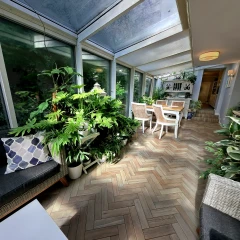
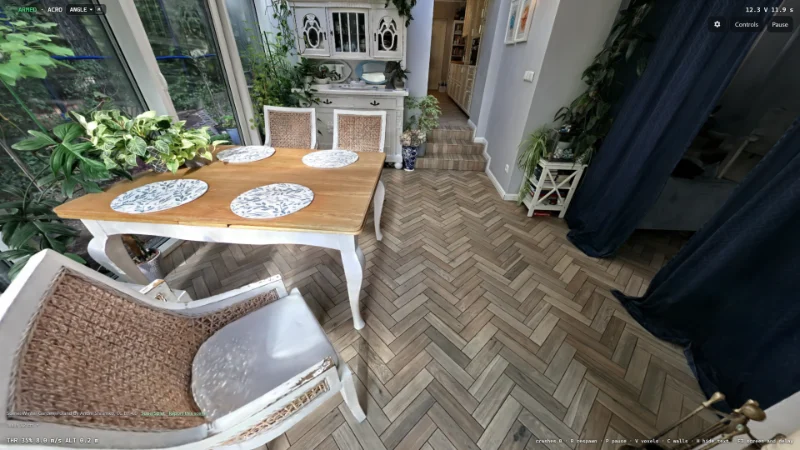
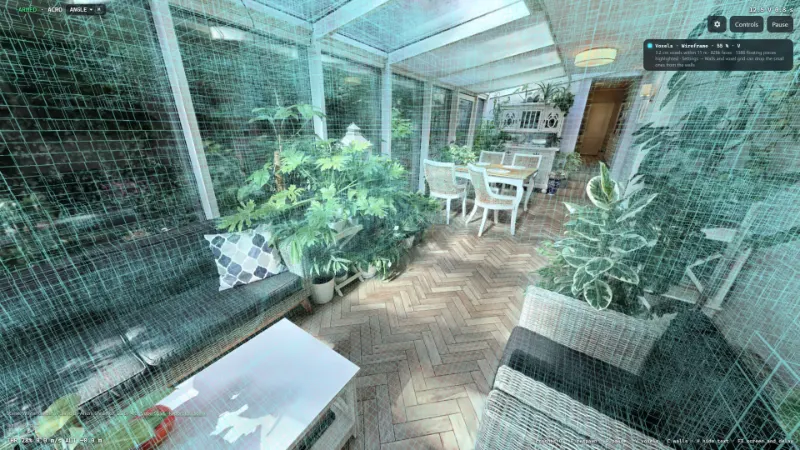
One of the 200 best-liked walkable scans on SuperSplat, picked at random.
Video: a flight in Winter Garden — Jastrzębia Góra, Poland, scan by Andrii Shramko, CC BY 4.0, recorded in the simulator. Fly this scene: Winter Garden — Jastrzębia Góra, Poland
02New: scene scale
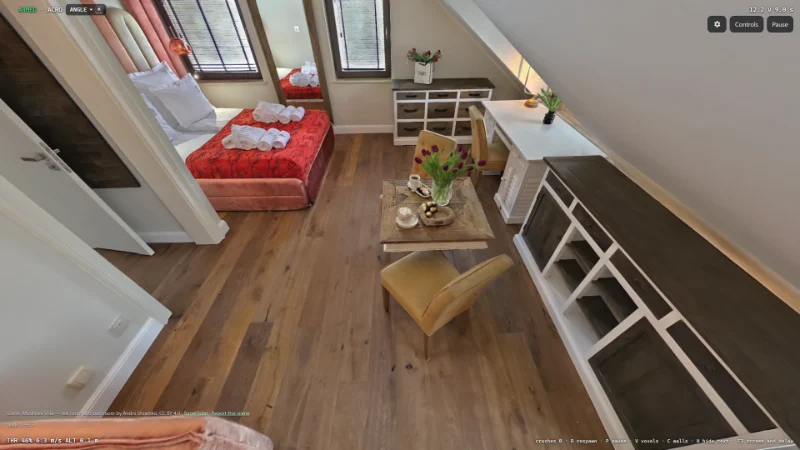
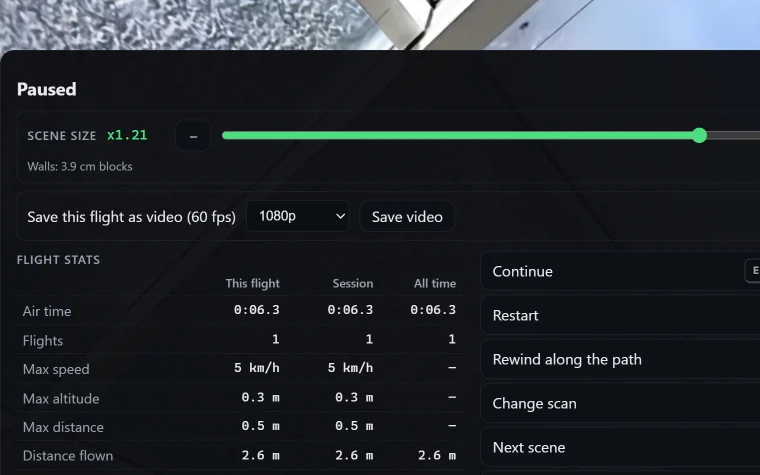
Two keys scale the whole scene around the drone, from ×0.25 to ×100. At ×100 you are the size of a mosquito: a chair is a tower block, the gap under the bed a canyon. Dive along a chair leg — it is an awesome feeling.
Macro scans work too: a plant, a toy or an insect is a small real object, so scale it up from ×3 to ×10 and fly it like a big building, among the leaves or around a fly. Such scenes can start already enlarged, and [ and ] change the size at any moment. The other way round, shrink a city (down to ×0.25) so it feels like a model, and fly it with a micro whoop.
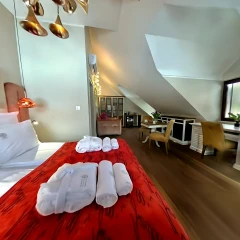
Opens the room in Andrii's villa; press ] until the table is a bridge.
Video: a flight in Modlinek Villa — red room and bathroom, scan by Andrii Shramko, CC BY 4.0, recorded in the simulator. Fly this scene: Modlinek Villa — red room and bathroom
03Inside the simulator
Every picture on this page is a real screenshot of the live simulator: 39 of them, taken on October 2, 2026 by a script in the repository, so they can be taken again after every release.
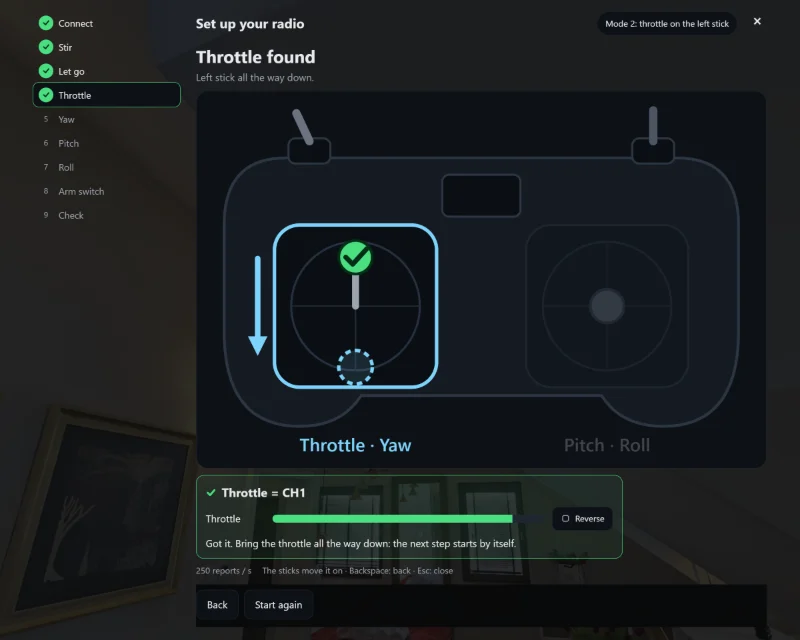
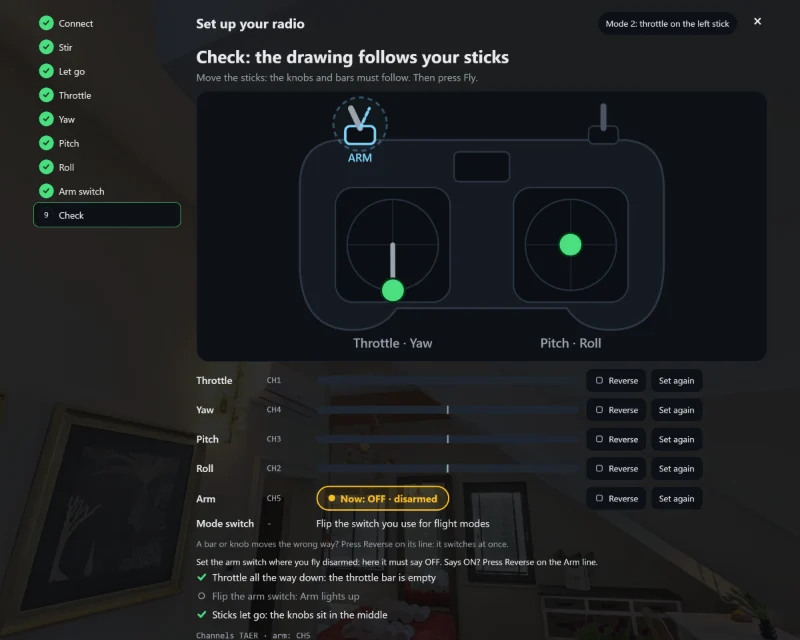
Plug in an EdgeTX radio and a drawn radio walks you through it: stick by stick, then the switch you arm with, then a check of every channel before you fly. Each step waits until you really move the stick.
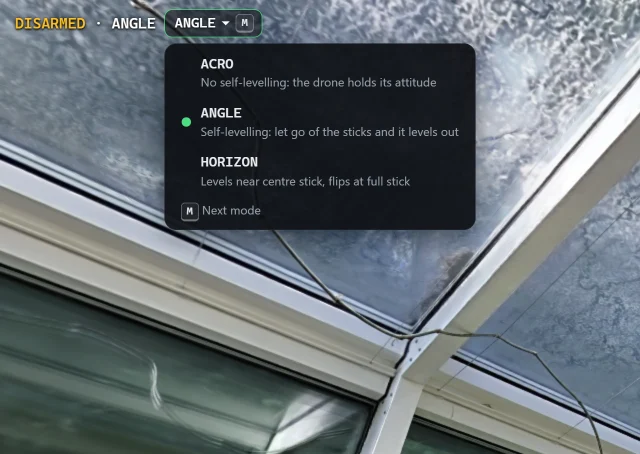
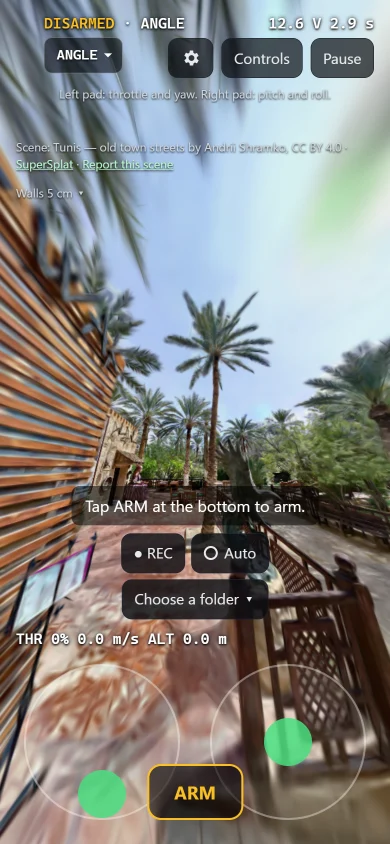
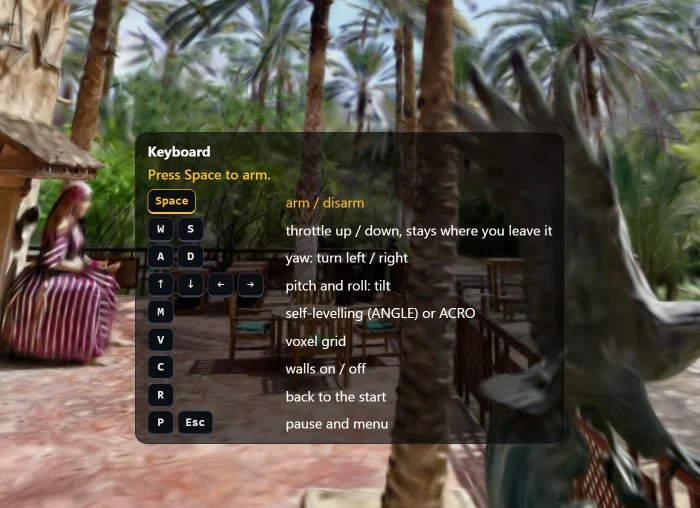
Angle self-levelling by default for everyone; the chip on screen, M or a switch on your radio picks Horizon or Acro. No radio at hand? The keyboard shows every key it uses, touch sticks appear on a touch screen, and a gamepad connects through the browser (not tested on real hardware yet).
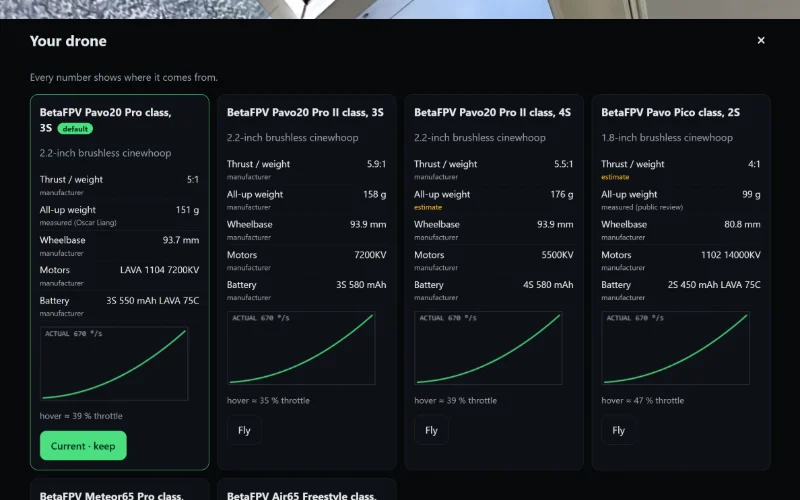
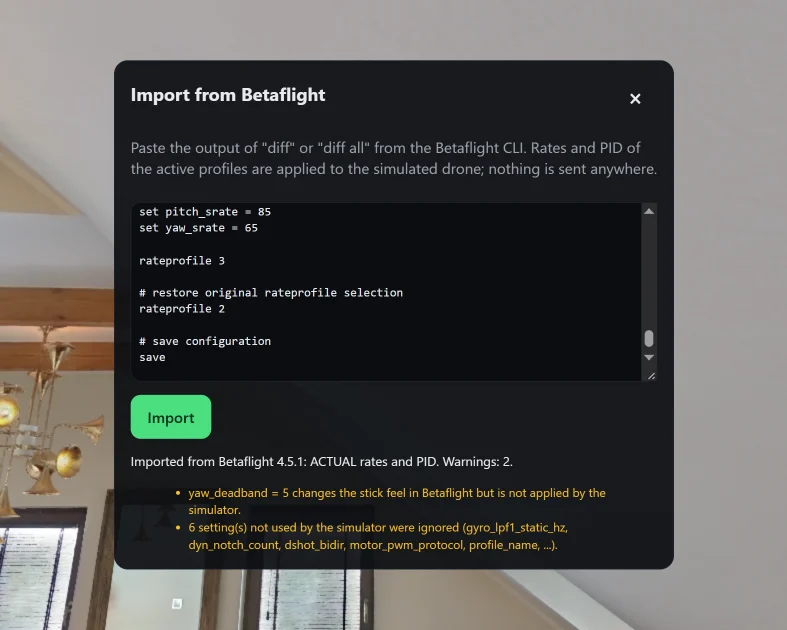
BetaFPV-class whoops, a 5-inch freestyle and a 5-inch race quad and an X8 cinelifter with a cinema camera, and every number on their cards says where it comes from. Paste a Betaflight CLI diff to fly with your own rates and PID.
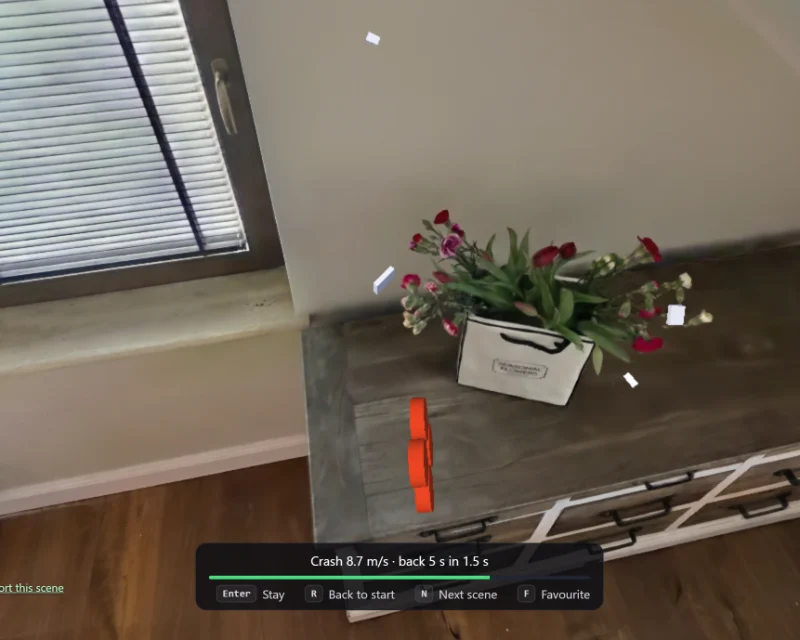
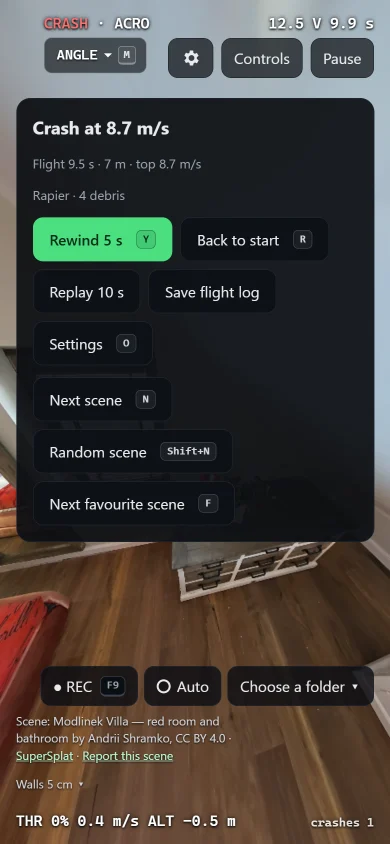
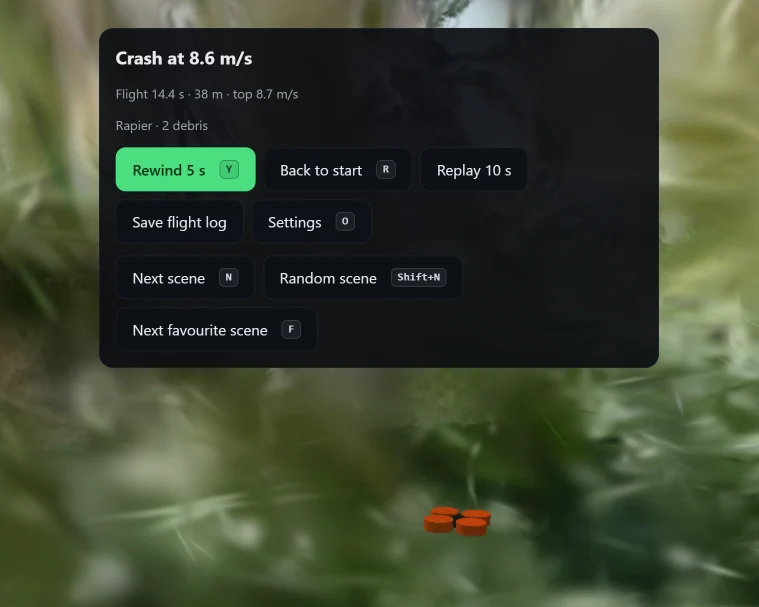
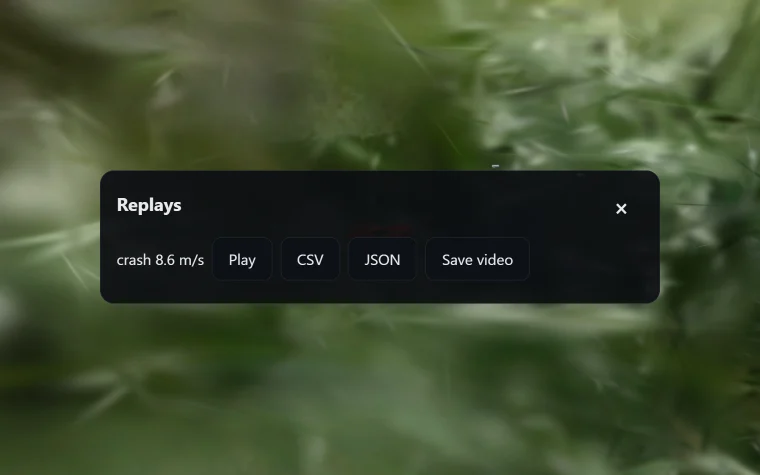
Hit a wall and the quad crashes at the speed it hit, the wreck tumbling with debris; two seconds later it is back in the air, 5 s back along your path and still armed. Crashes off, the delay and where you come back sit in Settings.
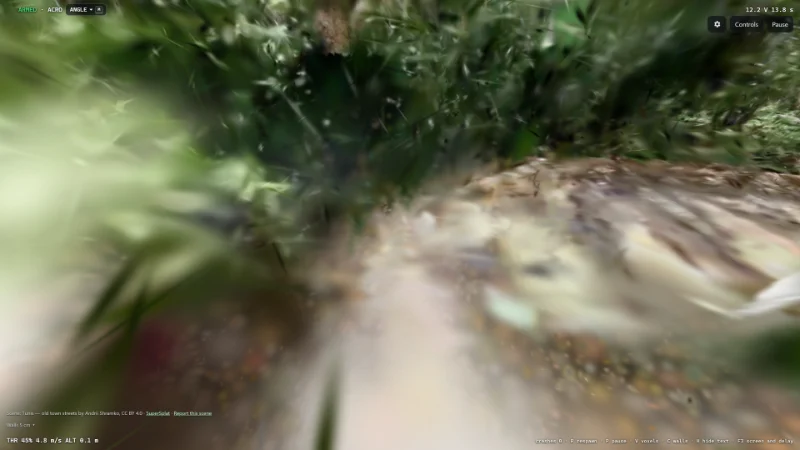
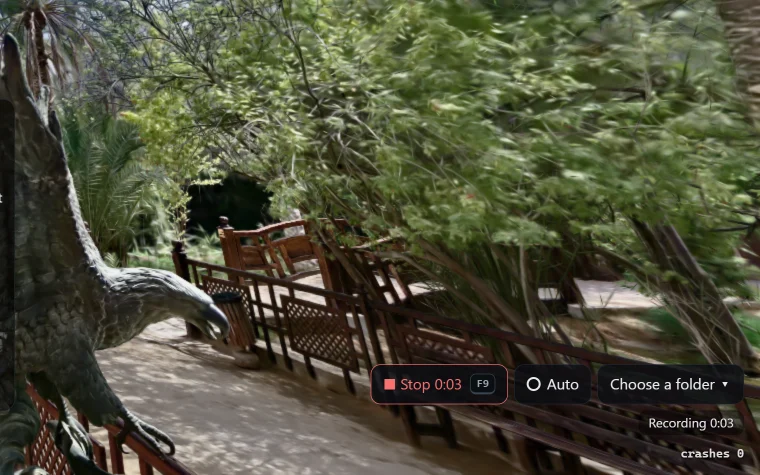
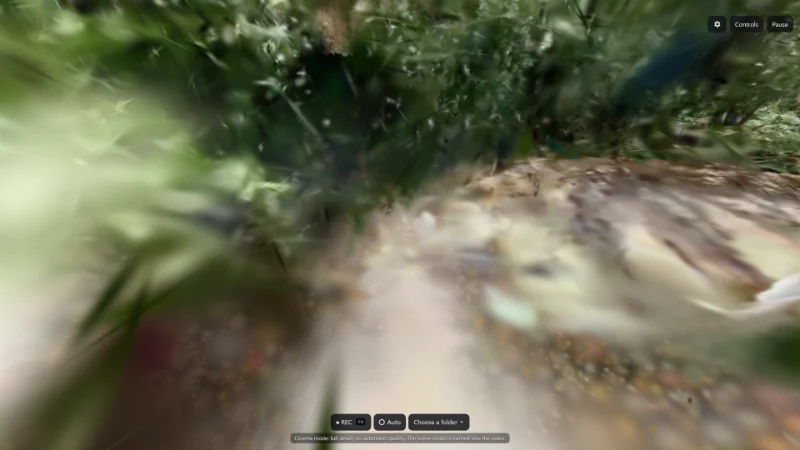
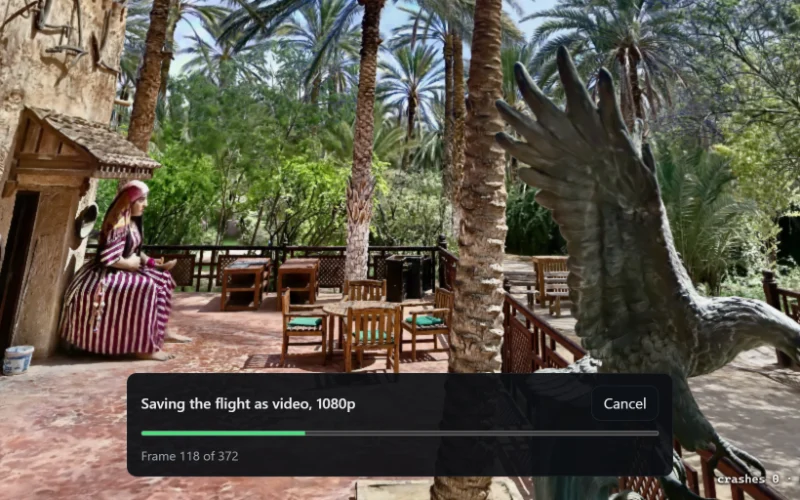
An OSD like in your goggles, field of view and camera uptilt. F9 records 60 fps video of Andrii's scans with their credit in the picture, auto-record catches every flight into your folder, and a flight log becomes a 60 fps video up to 4K.
Pick one of 1,300+ walkable scans in the SuperSplat tab with its own filters, one of Andrii's, or paste a link, and watch it load with real numbers. N, Shift+N and Shift+F change the scene in the page with the radio still connected; [ and ] scale the scene from ×0.25 to ×100.
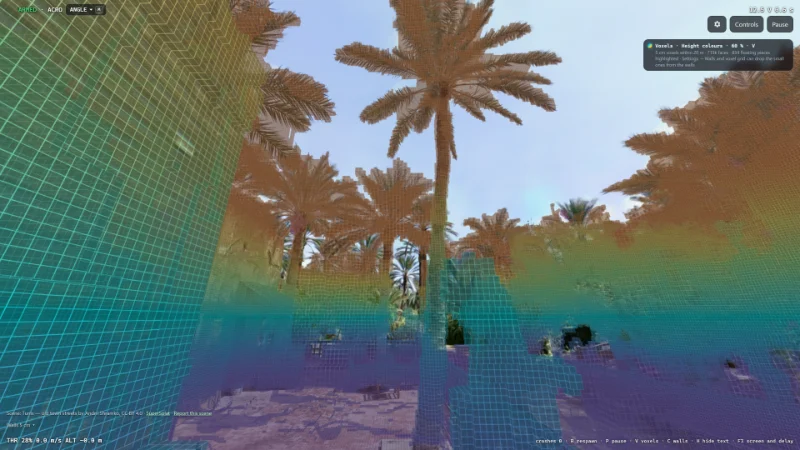
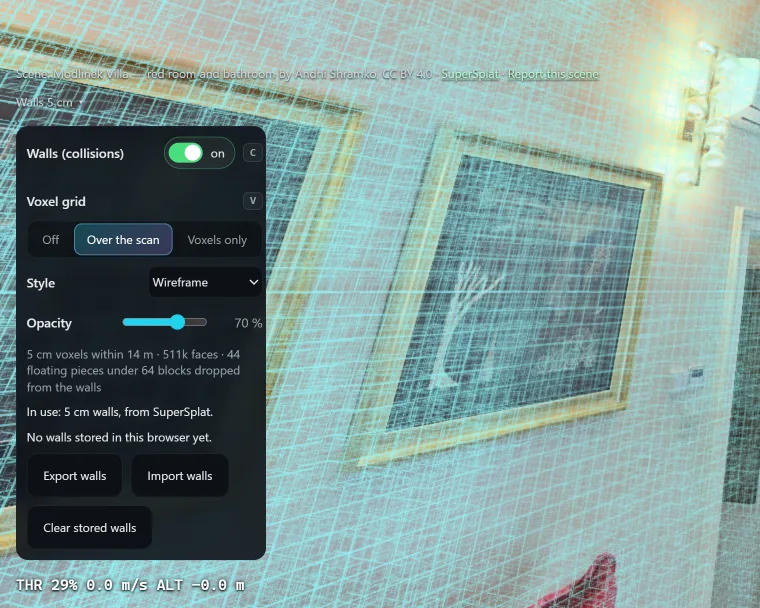
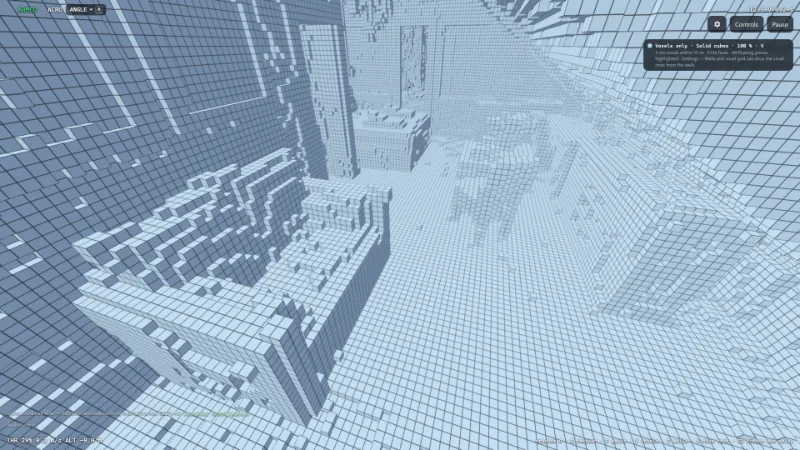
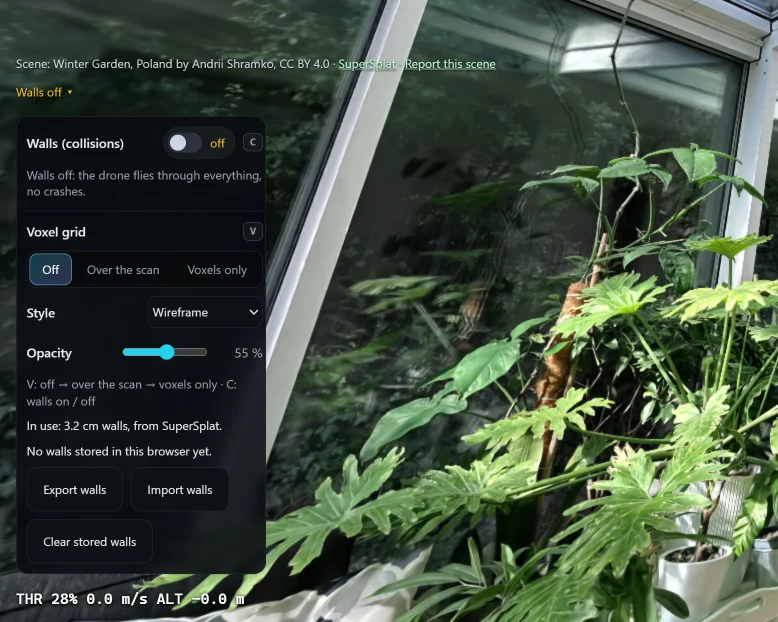
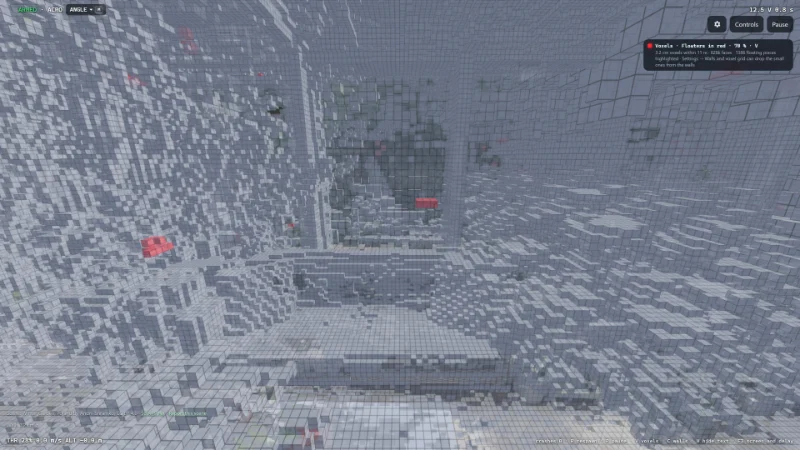
Show the walls you crash into as a voxel grid over the scan, or fly the grid alone. A noisy scan? Drop its floating specks, the phantom walls, with a live preview, or switch the walls off for every scene.
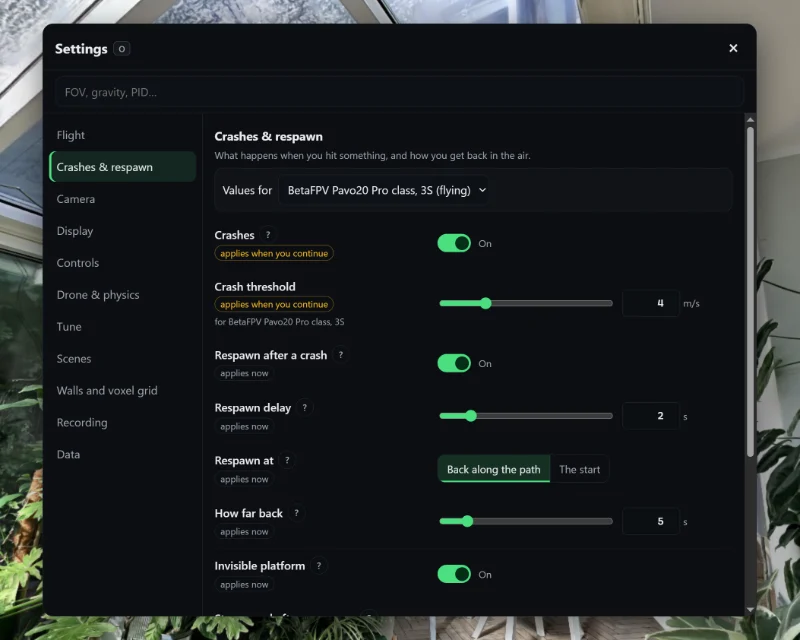
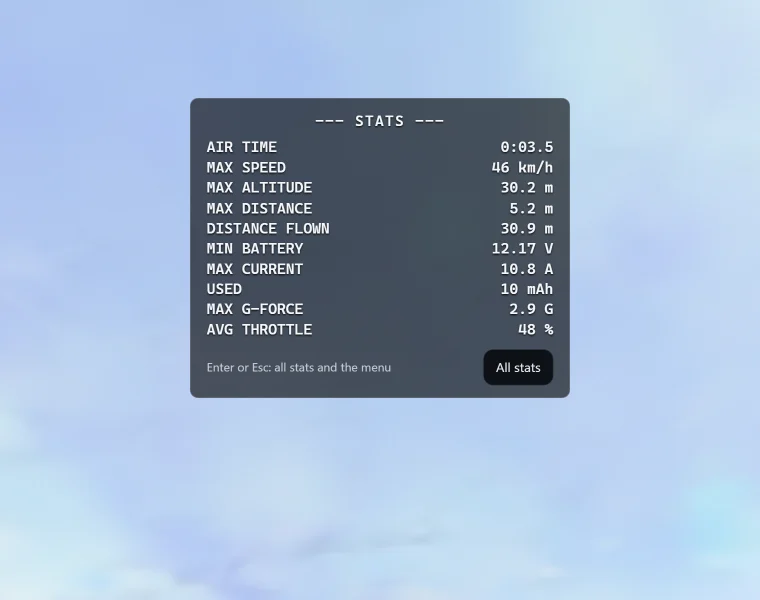
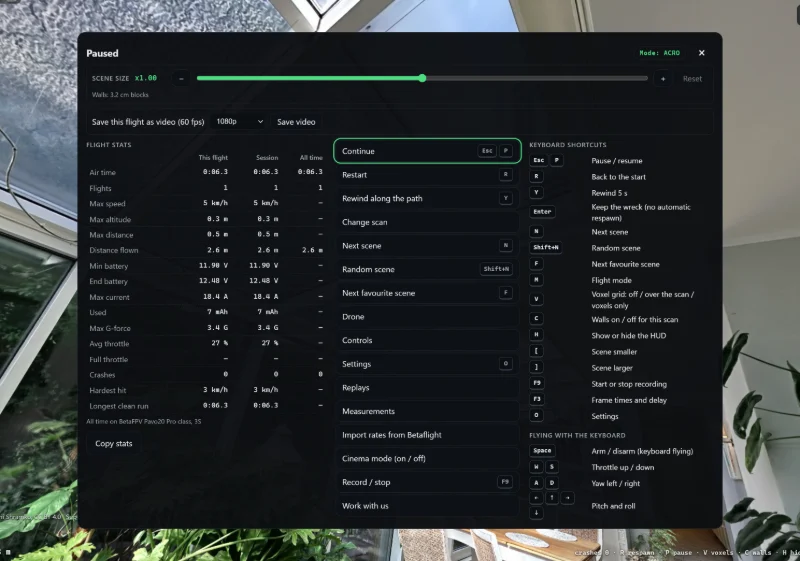
Every setting on one screen, kept between visits, with export, import and reset. Disarm and a goggles-style card shows the flight; pause and the summary panel has its stats, every menu item and every key.
04What you can set up
Radios, drones, physics, scenes and video: every option that works on the site today, what is being built right now and what comes next.
“Done” means you can use it on the site today. How each input was tested: Works with your radio.
Being built now.
Accepted and queued for the next builds.
Have an idea for the simulator?
Accepted ideas join this list marked “Pilot's idea”; no names are shown.
05Every screen
Every screen of the pause menu, the calibration wizard, the voxel grid, crashes, cinema mode and the phone layout. Each menu is shown as itself; open any picture to see the whole screen.
06How it works
No account, no download. The scene streams straight from SuperSplat into your browser.
01
Pick one of 1,300+ walkable scans in the simulator's SuperSplat tab, one of Andrii's, or paste the link to any public SuperSplat scene.
02
Plug in an EdgeTX radio in USB joystick mode (WebHID), use a gamepad, or fly with touch sticks.
03
Move the sticks once to calibrate, arm with the throttle all the way down — like a real quad — and go.
07Why it feels real
An own flight model — four motors, a mixer and a rate PID — flying inside the real geometry of the scan.
Every physics tick sweeps the drone's body against the scan's voxel collision data, so a fast quad can't slip through a thin wall between frames.
Hit something hard and the quad tumbles and throws debris. Brush a wall gently and it slides along it.
Betaflight, Actual, KISS and Raceflight rate curves match Betaflight 4.5.1's own code with 0 error at 1880 points, both computed in double precision (in float32 they differ by at most 0.00063 °/s).
Flights are recorded as stick input and replay deterministically: the same inputs always give the same flight.
Earth, Moon, Mars or zero-g. On the Moon the same drone gets extremely twitchy — the “keep thrust-to-weight” switch tames it.
Default craft
Every number says where it comes from.
“Class” means the numbers follow public specs and measurements. BetaFPV does not endorse this preset.
08Settings catalogue
Generated from the simulator's own settings schema at every release: exactly what you can change today, nothing planned, nothing made up. Search it or filter by group.
Shown: 74 of 74
“Per drone” values are kept separately for each drone, “per scene” ones for each scan.
Angle levels the drone when you let go of the sticks; Horizon levels it too but flips at full stick; Acro holds the attitude, like a freestyle quad. M or the mode chip switches it; a mode switch set on your radio's check screen decides instead.
flight.modeOpen in the simulator
How far the drone tilts in angle mode at full stick: more tilt, more speed. Betaflight's angle_limit (60° by default).
level.angleLimitDegOpen in the simulator
How firmly angle mode levels the drone and follows the stick: higher is snappier. Betaflight's angle strength (angle_p_gain, 50 by default): at 100 the drone reaches half the stick's tilt in about 70 ms instead of 100.
level.strengthOpen in the simulator
How firmly horizon mode levels the drone near the stick centre: higher levels harder. Betaflight's horizon level strength (75 by default).
level.horizonStrengthOpen in the simulator
Off: hitting a wall only bounces the drone off, the motors keep spinning. On: a hard hit is a crash.
crash.enabledOpen in the simulator
Impact speed above which a hit counts as a crash; slower touches slide along the wall.
physics.vCrashOpen in the simulator
On: after a crash the drone comes back by itself, nothing to press. Off: the crash panel waits for you.
respawn.autoOpen in the simulator
How long the crash plays before the drone comes back.
respawn.delaySOpen in the simulator
A few seconds back along your path, or the start.
respawn.targetOpen in the simulator
Seconds back along your path where the drone reappears: after a crash, when stuck, and with Y.
respawn.rewindSOpen in the simulator
The drone appears on an invisible pad at that height and sits on it, motors on, until you lift off.
respawn.platformOpen in the simulator
With the arm switch still on, the drone is armed right after a respawn: no switch flip.
respawn.keepArmedOpen in the simulator
Upside down or wedged and not moving: the drone goes a few seconds back by itself, like in Liftoff.
respawn.unstuckOpen in the simulator
When the pack is full again.
battery.refillOpen in the simulator
How wide the FPV camera sees. Each drone keeps its own value; a change never moves the drone.
camera.fovDegOpen in the simulator
How far the FPV camera tilts up; more tilt suits faster flying. Each drone keeps its own value.
camera.uptiltDegOpen in the simulator
The on-screen display: arm state, flight mode, battery, speed and altitude. H hides every text on the flight view for a moment.
display.hudOpen in the simulator
Moves the render resolution and detail budget. Physics always runs at 1000 Hz.
display.qualityOpen in the simulator
How the scan is drawn. Auto: your device's preset (the line under this row says which one was picked), normally the classic sorted drawing, which is smooth and keeps the scan's detail; the site's owner can change the presets. Stochastic skips sorting the splats and averages a noisy picture over the frames (SuperSplat's own renderer): when the camera is still it settles to the sorted picture within a few seconds, but in flight, in rooms, it is visibly noisier and softer than Sorted. On a strong GPU it is not faster in practice, and at 4K it needs more video memory. Sorted is the classic, smooth drawing. A link with ?stochastic (or ?stochastic=0) is obeyed when a scene opens; a choice made here while flying wins for that scene. Stochastic needs WebGPU in a desktop browser. Recording and the video export always draw sorted.
display.drawingOpen in the simulator
How many million splats the scan may draw at most. Auto takes the link's ?budget=, the scene owner's choice, or this device's preset (see the Render row). A link's ?budget= is obeyed when a scene opens; a choice made here while flying wins for that scene. More splats are sharper and slower; the quality governor still lowers it when frames are missed. Set it to what your device can do: it counts on a phone and a tablet too, up as well as down (a link's or a scene's number does not).
display.budgetOpen in the simulator
Which kind of device the site's drawing presets treat this as. Auto recognises it from the browser (the graphics adapter, memory, processor cores, touch screen and screen size); name the class yourself when the guess is wrong, for example a laptop that should draw like a strong desktop. The class sets the preset that Auto in Render and Splat budget stands for: the drawing, the splat budget and the resolution. You can still set Render and Splat budget by hand.
display.deviceClassOpen in the simulator
A calmer crash camera without flashes; follows your system setting by default.
display.reducedMotionOpen in the simulator
Screen refresh, frame times and input-to-screen delay over the flight view. F3 switches it.
display.frameStats
English, Spanish, Polish or Russian; by default the language of the page.
ui.languageOpen in the simulator
A mark in the centre of the view for lining up a gap. Off by default, like a real FPV feed. Never drawn into your videos, hidden in cinema mode.
crosshair.shapeOpen in the simulator
As a share of the screen's shorter side, so it looks the same on a phone and on a big monitor.
crosshair.sizeOpen in the simulator
Pick one that stands out on the scan you fly.
crosshair.colorOpen in the simulator
1 is solid; lower lets the scan show through.
crosshair.opacityOpen in the simulator
The whine of the four motors and the prop wash, following your throttle. Silent while paused or after a crash. The page can only start sound after your first click or key press.
sound.motorsOpen in the simulator
How loud the motors are.
sound.volumeOpen in the simulator
Which stick is the throttle in the calibration drawings: Mode 2 on the left, Mode 1 on the right.
input.stickMode
Easy play: no arming (the first key or touch starts the motors). On a keyboard it flies like a game: click to capture the mouse, move the mouse to turn and to look up and down, W A S D to move, Space up, Shift down, and when you let go the drone stops and hovers in place. On a touch screen: sticks with altitude help and a pilot school. Pilot: as a radio — the ARM button or Space, a throttle that stays where you leave it, Mode 2 keys (W/S throttle, A/D yaw, arrows pitch and roll). A radio or a gamepad always flies as a radio.
input.playOpen in the simulator
The drone holds its height by itself; up and down (the left stick on a touch screen) climb and sink at a steady speed. Works in angle mode only: horizon and acro can flip, and there your throttle flies. Step 1 of the pilot school. The game keys on a keyboard always hold the height.
input.altitudeHelpOpen in the simulator
A short buzz when you crash with the touch sticks, on phones that allow it (most Android phones; not iPhone).
input.hapticsOpen in the simulator
How far the drone turns and the camera tilts for a movement of the mouse. 1 is 0.1 degrees for each pixel of movement. Works with the game keys, while the mouse is captured (click on the view).
input.mouseSensitivityOpen in the simulator
Off: moving the mouse away from you looks up, as in most games. On: it looks down, like a flight stick pulled back.
input.mouseInvertYOpen in the simulator
How fast W A S D and Space / Shift fly: slow 4 m/s across and 3 m/s up, normal 8 and 5, fast 14 and 8. A small drone cannot always reach the fast speed: it flies as fast as its tilt and the air allow.
input.gameSpeedOpen in the simulator
A card with the keys, or the sticks, of the input you fly with: for a keyboard, Space up and Shift down, with the mouse and W A S D. It shows once each time you open the simulator. "Do not show again" on the card switches it off here too; K or the pause menu bring it back whenever you want.
input.howToFlyOpen in the simulator
One of the presets: BetaFPV-class whoops, a 5-inch freestyle and a 5-inch race quad, an X8 cinelifter with a cinema camera; every number on its card says where it comes from. Each drone keeps its own settings.
drone.current
What the cinelifter carries under its frame. iFlight sells the Taurus X8 without a camera and allows up to 3 kg; the motors stay the same, so the weight, thrust-to-weight and hover throttle change with the camera. Chosen on the drone picker's 3D view; the other drones ignore it.
drone.payload
Earth 9.81, Moon 1.62, Mars 3.72, zero-g, or any value in between.
physics.gravityOpen in the simulator
Same motors (honest), the thrust-to-weight you have on Earth, or auto throttle that hovers at stick centre.
physics.gravityModeOpen in the simulator
Maximum thrust divided by weight; the preset takes it from the manufacturer or an estimate.
physics.twrOpen in the simulator
How fast the motors reach a new speed; lower feels snappier.
physics.tauMsOpen in the simulator
Scales the air drag of the frame: more drag slows the drone down sooner.
physics.dragScaleOpen in the simulator
Rotor and duct drag that damps a cinewhoop's speed and wobble.
physics.ductDragOpen in the simulator
Scales the spin inertia of the props: more inertia softens throttle and turns.
physics.propInertiaOpen in the simulator
How much thrust the drone loses, and how much it shakes, while it sinks into its own downwash (catching a dive or a fast drop). 1 = the preset, 0 = off. The whoops have no prop wash in the simulator.
physics.propWashOpen in the simulator
Motor speed at zero throttle, like Betaflight's DShot idle value.
physics.idlePctOpen in the simulator
Moving air, as outdoors: it pushes the drone and carries it along, blows harder higher above the ground, and comes in gusts. The scan's wind is the one its author or the admin set for the place; live is the real wind there right now (scans with a known location); custom is your own wind for this scan.
wind.modeOpen in the simulator
Where the wind comes from, in compass degrees: 0 north, 90 east, 180 south, 270 west. On a scan without a compass heading, 0 is the direction the scan faces at the start.
wind.fromDegOpen in the simulator
Mean speed 10 m above the ground, as a weather forecast gives it. Near the ground it is weaker, higher up stronger. A small whoop already struggles at 8-10 m/s.
wind.speedOpen in the simulator
How far the wind rises and drops around its mean speed. Gusts come and go over a few seconds; 0 is a steady wind.
wind.gustOpen in the simulator
P, I, D and feed-forward for roll, pitch and yaw, for each drone, as in Betaflight.
tune.pidOpen in the simulator
Stick curves for each drone: Betaflight, Raceflight, KISS, Actual or Quick, with Betaflight's numbers. Edit them here or import them from your Betaflight CLI diff; Copy as CLI puts the same rates on your quad.
tune.ratesOpen in the simulator
Throttle mid and expo, as in Betaflight, for each drone.
tune.throttleOpen in the simulator
On: after a crash the next scene loads instead of a respawn, and you start on its platform. The radio stays connected.
scenes.autoSwitchOpen in the simulator
Where N (next scene) and the next scene after a crash come from. Shift+N is always a random scene from the author's list; Shift+F is your next favourite.
scenes.rotationOpen in the simulator
Random: every scene once before any comes again, never the one you are in. In order: one after another, round and round. The author's scenes come first, then SuperSplat in its own order. Left on the default, your own lists (favourites, scenes flown) still shuffle.
scenes.orderOpen in the simulator
Scenes without walls have no crashes: you fly through everything. Off: the rotation skips them (the author's own scenes always come).
scenes.allowNoWallsOpen in the simulator
Some scans are not in true metres, so the drone feels too big or too small. Or make a room huge and fly it like a mosquito, a chair as big as a house. From x0.25 to x100, around the drone; [ and ] change it in flight, x1.1 a press, with Shift x2. Kept for each scan.
scene.transformOpen in the simulator
Off: the drone flies through everything, no crashes. One choice for every scan: switched off here, the walls stay off on the next scan too. Until you switch them, each scan starts as its author set it (a noisy scan may start with the walls off). C switches it.
scene.wallsOpen in the simulator
Noisy scans have floating specks that become invisible walls the drone crashes into. Every piece of the walls smaller than this many blocks (a block is 4×4×4 voxels) is removed, for this scan only. 0 keeps everything; the voxel grid shows what is left.
scene.dropFloatersOpen in the simulator
Outdoor scans often have specks floating in the sky that turn into invisible walls. Above this height nothing counts as a wall. The scan's height is the one its admin set; custom is yours, set in a panel that shows it on the scan.
scene.ceilingOpen in the simulator
The height in the scan's own coordinates, before Scene size: what "Show and set the height" stores for you. 10000 ignores nothing.
scene.ceilingMOpen in the simulator
Shows the walls as voxels: over the scan, or instead of it (the scan hidden, you fly on the voxels). V switches it; a reload shows the scan again.
voxels.showOpen in the simulator
How the voxels are drawn. Floating pieces of the walls stand out in every style; "Floaters in red" colours only them.
voxels.styleOpen in the simulator
How solid the voxels look while the scan shows under them.
voxels.opacityOpen in the simulator
How solid the voxels look with the scan hidden.
voxels.opacityOnlyOpen in the simulator
60 fps by default, at a constant frame rate (what DaVinci and Premiere expect).
recording.fpsOpen in the simulator
Up to this height, never larger than the picture on screen.
recording.resolutionOpen in the simulator
Starts when you arm, stops 3 s after you disarm, into the last chosen folder.
recording.auto
A long flight is split into files: if the tab crashes, only the last part is lost.
recording.splitMinOpen in the simulator
The first video of a scan outside the showcase shows one line on the recording bar: whose scan it is, its licence, and that the video is yours to use and to credit.
recording.authorNoticeOpen in the simulator
No setting matches this search. Try another word.
In the simulator each key is shown next to its menu item.
No radio? These keys are the sticks.
Every number says where it comes from: manufacturer, independent measurement or estimate.
Built from published numbers and estimates. Fly one of them for real and it feels different here? Send your Betaflight diff all, a blackbox log and a few words through the simulator's Drone physics form, or ask there for a drone that is missing.
BetaFPV Pavo20 Pro class, 3Sdefault
BetaFPV Pavo20 Pro II class, 3S
BetaFPV Pavo20 Pro II class, 4S
BetaFPV Pavo Pico class, 2S
BetaFPV Meteor65 Pro class, 1S
BetaFPV Air65 Freestyle class, 1S
iFlight Nazgul Evoque F5 V3 class, 6S
iFlight Mach R5 Sport class, 6S
iFlight Taurus X8 class with a RED Komodo, 6S
Generated on November 8, 2026 from the settings schema. A setting that is still being built appears here the day it ships.
09Live numbers
Each figure is read from the repository's evidence file when this site is built. If a measurement goes missing, the build fails.
1880 points, max error 0 deg/s
0 wall pass-throughs in 200,000 straight passes
Pavo20 Pro body stops 47.2 mm (median) beyond its own size from walls on the 5 cm voxel collision of scene 39e63ce9
The test display runs at 30 Hz, so this result is bounded by the screen rather than by the simulator. It is published, but it is not gated.
Stick-to-photon latency with a camera has not been measured yet.
Values and methods are quoted from the evidence file as published, in English. Evidence file updated 2026-11-08.
All raw evidence on GitHub10The catalogue
Every place the curator has published for flying, in his order. Each one has its own page with the facts, the author and the licence.
11Works with your radio
An honest matrix: nothing is marked as tested unless it was, and so far that means emulation or a simulated radio.
Browser: Chrome, desktop
Input: EdgeTX radio (RadioMaster TX16S, Boxer, Pocket, Zorro) as a USB joystick over WebHID
Status: Tested in Chrome with a simulated EdgeTX radio — not with a real radio yet, and Edge not run yet
Browser: Chrome / Edge, desktop
Input: Gamepad
Status: Not tested on real hardware yet
Browser: Chrome / Edge, desktop
Input: DJI remote as a gamepad
Status: Not tested
Browser: Desktop Chrome, touch emulation (375×812, 1024×768)
Input: Touch sticks
Status: Tested in emulation only — Safari, iPad and Android browsers not tested yet
Browser: Firefox
Input: Gamepad or touch sticks
Status: Firefox 155 renders the scene with WebGPU and offers a gamepad or touch sticks (flying not tested yet); radios need Chrome or Edge (no WebHID)
Have an EdgeTX radio? A short test report helps a lot — use the contact form below or open an issue on GitHub.
12Why this is better
Facts as of September 2026. “Unknown” means we could not verify it.
| Feature | ShramkoGSFPV | Walking in the SuperSplat viewer | Browser splat-FPV demos (e.g. SplatFPV) | Classic FPV simulators (fixed maps) |
|---|---|---|---|---|
| Real scanned places | Any public SuperSplat scene; the 1,300+ with walls in a built-in catalogue | Yes | Yes, one file at a time | No, fixed maps |
| Drone model | 4 motors, mixer, rate PID | None: a walking or flying camera | First-order rate filter | Full |
| Your own rates | Betaflight, Actual, KISS, Raceflight | Not applicable | Flat max rate plus expo | Yes |
| Hitting a wall | Crash and tumble | Slide along it | Stop or slide | Crash |
| Collision source | SuperSplat's voxel octree, swept test | SuperSplat's voxel octree | Rebuilt at load, point test | Hand-made meshes |
| Radio input | EdgeTX over WebHID, gamepad, touch | Gamepad | Gamepad API | USB joystick |
| Published test numbers | Yes, see Live numbers | unknown | unknown | unknown |
| Install | None | None | None | Yes |
| Source code | MIT | MIT | Varies | Closed |
Classic simulators are still the place to train for races on purpose-built tracks. This project is about flying real places.
13For your AI agent
Paste this into Claude Code, Codex, Cursor or any coding agent. It installs the project, runs the checks and opens the simulator locally, and only asks you for passwords or physical actions.
Set up ShramkoGSFPV for me by following https://github.com/AndriiShramko/ShramkoGSFPV/blob/main/AGENT_SETUP.md exactly. Install, run the checks, start the simulator locally and open it in Chrome. Do not change any system settings; ask me only if a step needs my password or a physical action.rules for coding agents working in the repo
step-by-step install, update and removal
a short summary of the project for language models
14Risks & safety
Short and honest, so nothing catches you by surprise.
Scenes load from SuperSplat's public but undocumented CDN. It can change at any time, and some scenes may stop loading.
For those, the simulator can build walls right in your browser with SuperSplat’s own tool (up to 4 million Gaussians, about 25 seconds for a 2.1-million scan on a desktop GPU). Bigger scans stay fly-through.
Crashes and fast flight can make you queasy, so take breaks. Measured over 50 crashes, effects flash at most 2 times per second, under the WCAG limit of 3; your reduced-motion setting is respected (not tested yet).
Practise responsibly, follow your local drone law and never fly over people.
Calibration, flight history and favourites are stored only in your browser.
15FAQ
Open ShramkoGSFPV in desktop Chrome or Edge, pick a scan (1,300+ with walls in the SuperSplat tab, one of Andrii's or a pasted SuperSplat link), connect a radio, a gamepad or touch sticks, then calibrate, arm and fly. There is nothing to install.
That is what it is built for: switch an EdgeTX radio such as the TX16S, Boxer, Pocket or Zorro to USB joystick mode and connect it over WebHID in Chrome or Edge. So far this has been tested only in Chrome with a simulated EdgeTX radio, not with real hardware or in Edge.
Yes. ShramkoGSFPV is free and open source under the MIT license. It runs on WebGPU in desktop Chrome or Edge, with no download.
Any public SuperSplat scene, by link or id; the simulator's SuperSplat tab lists the 1,300+ published with walls, with superspl.at's own filters. Those have solid walls at once; for the others you can build walls in your browser with one click (scans up to 4 million Gaussians). Bigger scans can be flown through but not crashed into.
Touch sticks have been tested only in desktop Chrome's touch emulation, not in Safari, on iPad or in Android browsers yet, and you need a browser with WebGPU. Radios need desktop Chrome or Edge.
The rate curves (Betaflight, Actual, KISS, Raceflight) match Betaflight 4.5.1's own code with 0 error at 1880 points when both are computed in double precision, and a rate PID drives four motors through a mixer. It is our own flight model, not Betaflight firmware.
On scenes with collision data you crash: the drone's body is swept against the voxel data on every physics tick, and a test harness checks that fast flight cannot tunnel through walls. See Live numbers for the result.
Yes, MIT. Code, measurements and design decisions are on GitHub. Betaflight's formulas were re-implemented; no GPL code was copied.
Yes. Random top-rated in the SuperSplat tab opens a scan you have not seen, Shift+N loads a random scene in flight, and with “Next scene after a crash” switched on every crash takes you to another scene: from Andrii's picks, your favourites or the scenes you have flown, in random or fixed order. The radio stays connected.
Yes. Scene size scales the whole scan around the drone from ×0.25 to ×100 with [ and ] (Shift+] doubles it) or in the pause menu. At ×100 a chair is the size of a tower block and you can dive along its legs; the walls scale with the scene, so you still crash into them. The scale is kept for each scan.
Yes. Publish it on SuperSplat (superspl.at) and paste its link or id on this page or in the simulator. Published with walls (voxel collision data), it is solid at once; without them you can build walls in the browser for scans up to 4 million Gaussians.
Yes. The drones are built from published numbers and estimates: BetaFPV-class whoops, an iFlight Nazgul Evoque F5 class 5-inch freestyle quad, a Mach R5 Sport class 5-inch race quad and a Taurus X8 class cinelifter carrying a RED Komodo. If you fly one of them for real and it feels different, press Help tune it in the drone picker or in Settings and send your Betaflight diff all, a link to a blackbox log and a few words; Andrii fits the drone to it. The same form asks for a drone that is not in the list.
16Open source
Code, measurements and every design decision live on GitHub. Pull requests, test reports from real radios and new scans are welcome.
PlayCanvasMIT
The engine that renders the scans, and the SuperSplat viewer, whose collision code is vendored here.
RapierApache-2.0
Deterministic physics for the crash: the tumbling craft and its debris.
BetaflightGPL-3.0
Rate and PID formulas were read from Betaflight 4.5.1 and re-implemented. No GPL code was copied.
SplatFPVMIT
An earlier browser experiment that showed FPV through splats is possible. No code was taken.
17Contact
Andrii Shramko
FPV pilot and 3D Gaussian Splatting specialist, author and maintainer of ShramkoGSFPV.
Always open to interesting people — and ready to help teams build incredible projects.
I'm looking for FPV pilots, scanning studios, drone vendors, investors and developers — for partnership, licensing, integration or funding. Tell me who you are in one click.